Showing posts with label Booting. Show all posts

6.8.11

Windows 7 fails to configure updates

As a first step of troubleshooting, I would suggest you to check the updates history to see if there are any updates that have a failed status and let me know the description of those updates.

Step 1: Check the update history

http://windows.microsoft.com/en-US/windows7/See-which-Windows-updates-are-installed

Let me know if the description of the updates that have failed status.


Step 2: Manually try installing the updates from Microsoft Download Center

a. Go to the Microsoft download website, type the "KB" number of the update into the download search box, and then click Go.

b. In the list of search results, click the Knowledge Base (KB) article link to go to the download page. If there's more than one listing, look for a link that goes to the Microsoft Download Center.
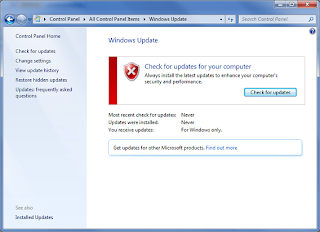
Windows 7 fails to configure updatesc. If there are multiple versions on the download page, find the appropriate one for your computer. Click the Download button, and save the update to your desktop.

d. When prompted, click Open to install the update.


Step 3: Run Windows Update Troubleshooter

http://windows.microsoft.com/en-US/windows7/Open-the-Windows-Update-troubleshooter


Step 4: The update is not installed successfully, you receive a message, and the computer restarts when you try to install an update in Windows Vista and Windows 7

http://support.microsoft.com/kb/949358

1.8.11

Stub has stopped working Error message

Can you do the following for me please?
OTL
Download OTL to your desktop.
Double click on the icon to run it. Make sure all other windows are closed to let it run uninterrupted.
When the window appears, underneath Output at the top change it to Minimal Output.
Under the Standard Registry box change it to All.
Check the boxes beside LOP Check and Purity Check.
Click the Run Scan button. Do not change any settings unless otherwise told to do so. The scan wont take long.
When the scan completes, it will open two notepad windows. OTL.Txt and Extras.Txt. These are saved in the same location as OTL.
Please copy (Edit->Select All, Edit->Copy) the contents of these files, one at a time, and post it with your next reply.

CKScanner

Please download CKScanner from here to your Desktop.

Make sure that CKScanner.exe is on the your Desktop before running the application!

Double-click on CKScanner.exe and click Search For Files.
After a very short time, when the cursor hourglass disappears, click Save List To File.
A message box will verify the file saved
CKFiles.txt will be created on your desktop, copy and paste the contents of this into your next post

Malwarebytes Anti-Malware

Download and install MBAM from here
Run a full scan

17.6.11

Windows Kernel event ID 41 error in Windows 7

Your computer restarts, and a critical error message is logged in the event log:
Log Name: System
Source: Microsoft-Windows-Kernel-Power
Event ID: 41
Level: Critical
Description:
The system has rebooted without cleanly shutting down first. This error could be caused if the system stopped responding, crashed, or lost power unexpectedly.
The Details tab shows the following information:
EventData
BugcheckCode 0
BugcheckParameter1 0x0
BugcheckParameter2 0x0
BugcheckParameter3 0x0
BugcheckParameter4 0x0
SleepInProgress true
PowerButtonTimestamp 129165039139928187
Note The values for the Stop error BugcheckCode and the BugcheckParameters can vary.

11.6.11

Windows 7 gen_ml.dll error with KMPlayer

gen_ml.dll (media library winamp plugin) problem is a common issue in Windows Vista/Windows 7. Playback seemed to work for me, but startup was extremely slow and the screen froze for ten seconds. To avoid it you can do one of the following:

Delete gen_ml.dll from plugins folder if you don’t need it (Recommended) (I tried renaming the file, but it still caused problems)
Install KMP in a folder with admin rights.
Run KMP with admin rights (right click on file -> properties)
Disable UAC in Windows Vista (not recommended)

Via: Access Violation on startup (gen_ml.dll)

5.5.11

Windows Safe Mode Windows 2000 / XP

If you are running Safe Mode because you cannot get into Windows, you may want to first try loading the last known good configuration.
To get into the Windows 2000 / XP Safe mode, as the computer is booting press and hold your "F8 Key" which should bring up the "Windows Advanced Options Menu" as shown below. Use your arrow keys to move to "Safe Mode" and press your Enter key.
Note: With some computers, if you press and hold a key as the computer is booting you will get a stuck key message. If this occurs, instead of pressing and holding the "F8 key", tap the "F8 key" continuously until you get the startup menu.
Trouble Getting into Windows 2000 or Windows XP Safe mode - If after several attempts you are unable to get into Windows 2000 or Windows XP Safe Mode as the computer is booting into Windows, turn off your computer. When the computer is turned on the next time Windows should notice that the computer did not successfully boot and give you the Safe Mode screen.
Windows Advanced Options Menu
Please select an option:

Safe Mode
Safe Mode with Networking
Safe Mode with Command Prompt

Enable Boot Logging
Enable VGA mode
Last Known Good Configuration (your most recent settings that worked)
Directory Services Restore Mode (Windows domain controllers only)
Debugging Mode

Start Windows Normally
Reboot
Return to OS Choices Menu

Use the up and down arrow keys to move the highlight to your choice.
Once you're done in Safe mode if you want to get back into Normal Windows restart the computer like you normally would and let it boot normally.

Twitter Delicious Facebook Digg Stumbleupon Favorites More