Showing posts with label System Restore. Show all posts

27.11.11

Bootmgr is Missing in Windows 7

This is one of the most common boot issue you might come around, in the Windows operating system. In this article I will tell you how you can fix the Bootmgr is Missing error message in Windows 7

Step 1:

Insert the Windows 7 Installation or Repair disk into your drive and reboot the System. You will be prompted to “Press any key to boot from disk” so go ahead and press Enter.


Step 2:

Then it will give you language selection option click Next.


Step 3:

You will now get the option to “Repair your Computer“.


Step 4:

Select Repair your computer option and the Operating System i.e. Windows 7 next. Click Next.


On some occasions you may not find any operating system listed. Don’t panic just click Next!
Step 5:

Now click on “Command Prompt“.


Step 6:


Type in the following commands:

bootrec /fixboot
bootrec /fixmbr
bootrec /RebuildBCD

Sometime you may need to change the directory from X:\Windows\System to C:\ type in the command cd\ then c: then run the commands.

Once you finish running those commands, reboot the system and see if it boots. It should! If not then run Startup Repair 3 different times.

23.8.11

ESET Microsoft security update (KB2286198) hangs or causes a BSOD on restart

If you are experiencing a system hang or blue screen error after attempting to install Microsoft security update (KB2286198), you will need to update your ESET security product. This issue is due to a potential conflict with the Windows update and ESET NOD32 Antivirus and ESET Smart Security. Downloading a new ESET virus signature update (version 5338 and later) will resolve this issue. To update your ESET security product, follow the steps below:

Open the main program window by clicking the ESET icon next to the system clock or by clicking Start All Programs ESET ESET Smart Security or ESET NOD32 Antivirus.

Click Update from the main menu on the left and click Update virus signature database in the main program window on the right.

The Update status should read: Version of virus signature database: 5338 (20100803). Verify that you have version 5338 or later.

Restart the Windows update process. Visit Microsoft's Windows 7 Solution Center for more information on receiving Windows updates.

Update for Windows (KB2570791)

Locale: All
Deployment: Windows Update, Microsoft Update, Important/Automatic Updates, WSUS, and Catalog
Classification: High Priority, Non-Security, Update Rollups
Supersedes: KB2443685 on Windows Embedded Standard 7, Windows 7, Windows Server 2008 R2, Windows Server 2008, Windows Vista, Windows Server 2003, and Windows XP
Target platforms: Windows Embedded Standard 7, Windows 7, Windows Server 2008 R2, Windows Server 2008, Windows Vista, Windows Server 2003, and Windows XP
Approximate file sizes:

Windows Embedded Standard 7/Windows 7 update: ~ 712KB
Windows Embedded Standard 7 x64/Windows 7 x64/Windows Server 2008 R2 x64 update: ~ 1152KB
Windows Server 2008 R2 IA-64 update: ~ 217KB
Windows Server 2008/Windows Vista update: ~ 457KB
Windows Server 2008 IA-64 update: ~ 148KB
Windows Server 2008 x64/Windows Vista x64 update: ~ 529KB
Windows Server 2003 update: ~ 499KB
Windows Server 2003 IA-64 update: ~ 1033KB
Windows Server 2003 x64/Windows XP x64 update: ~ 691KB
Windows XP update: ~ 502KB

Description:
Install this update to resolve issues caused by revised daylight saving time and time zone laws in several countries. This update enables your computer to automatically adjust the computer clock on the correct date in 2011. After you install this item, you may have to restart your computer.

6.8.11

Windows 7 fails to configure updates

As a first step of troubleshooting, I would suggest you to check the updates history to see if there are any updates that have a failed status and let me know the description of those updates.

Step 1: Check the update history

http://windows.microsoft.com/en-US/windows7/See-which-Windows-updates-are-installed

Let me know if the description of the updates that have failed status.


Step 2: Manually try installing the updates from Microsoft Download Center

a. Go to the Microsoft download website, type the "KB" number of the update into the download search box, and then click Go.

b. In the list of search results, click the Knowledge Base (KB) article link to go to the download page. If there's more than one listing, look for a link that goes to the Microsoft Download Center.

Windows 7 fails to configure updatesc. If there are multiple versions on the download page, find the appropriate one for your computer. Click the Download button, and save the update to your desktop.

d. When prompted, click Open to install the update.


Step 3: Run Windows Update Troubleshooter

http://windows.microsoft.com/en-US/windows7/Open-the-Windows-Update-troubleshooter


Step 4: The update is not installed successfully, you receive a message, and the computer restarts when you try to install an update in Windows Vista and Windows 7

http://support.microsoft.com/kb/949358

1.8.11

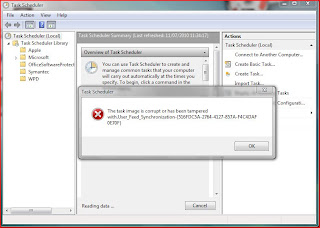
The task image is corrupt or has been tampered

In order to fix this, you have to delete the actual task XML file that contains the task settings,
then rerun the Task Scheduler to confirm that the error is gone, then import a non-corrupted version of the task back into the Task Scheduler.
Most of the work you have to do is to locate the task file in question.
The task files are located in C:\Windows\System32\Tasks.
If you try to open the task folder, you might get a UAC prompt asking you for permission to access the folder, this is OK, just click continue to access the folder.
In my case, the corrupt task was "Microsoft-Windows-DiskDiagnosticDataCollector".
The task image is corrupt or has been tamperedThis was a Microsoft task, therefore I had to go into the C:\Windows\System32\Tasks\Microsoft\Windows\DiskDiagnostic folder to locate the actual task xml file,
which was named "Microsoft-Windows-DiskDiagnosticDataCollector".

Once you have located the task file, close the task scheduler, back up the corrupted task file to any location of your choice, then delete it, then open the task scheduler to confirm that the error has gone.

What you now need to do is to export the non-corrupted task from another computer or virtual machine, and import it into the task scheduler.
To export the task in question from another computer, follow these steps.

1. Open the Task Scheduler, then drill down into the task in question, then right-click on the task and select "Export...".
2. Save the exported XML file to a location of your choosing, then copy it over to the affected computer.
3. Once you are back on the affected computer, make sure that the task scheduler is closed, then you need to run the task scheduler as an Administrator.
4. To run the task scheduler as an Administrator, click Start>All Programs>Accessories>System Tools, then locate "Task Scheduler", right-click it and select "Run as Administrator".
5. Once the task scheduler is open, drill down to the folder where the task is supposed to be located, right-click on a blank portion of the window, and select "Import Task...".
6. Once you have imported the task, a "Create task" window will open as shown below, just click OK to it.
7. The task should then be successfully imported, you can then close the task scheduler, and the problem should be fully resolved.

Stub has stopped working Error message

Can you do the following for me please?
OTL
Download OTL to your desktop.
Double click on the icon to run it. Make sure all other windows are closed to let it run uninterrupted.
When the window appears, underneath Output at the top change it to Minimal Output.
Under the Standard Registry box change it to All.
Check the boxes beside LOP Check and Purity Check.
Click the Run Scan button. Do not change any settings unless otherwise told to do so. The scan wont take long.
When the scan completes, it will open two notepad windows. OTL.Txt and Extras.Txt. These are saved in the same location as OTL.
Please copy (Edit->Select All, Edit->Copy) the contents of these files, one at a time, and post it with your next reply.

CKScanner

Please download CKScanner from here to your Desktop.

Make sure that CKScanner.exe is on the your Desktop before running the application!

Double-click on CKScanner.exe and click Search For Files.
After a very short time, when the cursor hourglass disappears, click Save List To File.
A message box will verify the file saved
CKFiles.txt will be created on your desktop, copy and paste the contents of this into your next post

Malwarebytes Anti-Malware

Download and install MBAM from here
Run a full scan

C00D1199 Error message Problem

Error Message C00D1199
So I made a big mistake.
C00D1199 Error message Problem

I got a Flip Video Camera for my birthday. Woot. I could watch the videos with no problem. So I got motivated. I was trying to use the mpeg videos it produces in WMM. I downloaded a codec package, and now I can't watch the originals. I unistalled the darn package, and no change.

The error message I'm getting is C00D1199. From what I can find it's a broad error code for a variety of problems. Can anyone help me?

Ok, there are several way which you could try. The first of which, is installing codecs:

Free-Codecs.com : Download K-Lite Codec Pack 6.1.0 FULL, K-Lite Codec Pack 6.1.0 STANDARD, K-Lite Codec Pack 6.1.0 BASIC : K-Lite Codec Pack is a collection of codecs and related tools

If you download and install this (I would use the full version). Then you should be able to import .mp4 files into WMM and merge them together.

9.7.11

Error Messages : How To Repair Windows Errors

There can be many causes for the error codes on your system. It can be causes by a viruses, malware, spyware, adware or simply a corrupt application. Sometimes, it can be caused by installing a new application without completely removing a conflicting application. This can cause registry corruption or data file corruption or mis-linked files.

Paretologic Regcure offers a state of the art registry cleaner. Running this scan is a excellent way to clean your PC of junk entries and maintain running at its fastest.
What's the windows registry?

The registry holds all the information that windows needs to operate your system. It's a huge database of pointers to all the files that applications need. It tracks all the devices attached to the system as well as the proper files they need to operate. .
Why would the registry need to be cleaned?

Error Messages : How To Repair Windows Errors

As you use your computer over time, deleting files, changing hardware, adding and removing applications, the registry could have a lot of entries that are invalid. This can cause your system to slow down while it loads the registry hives and tries to find everything that it's pointing to. It's kinda like a car with a clogged fuel filter and the gas has to find it's way to the engine.
What do I do to clean the registry?

When you launch a scan with Regcure, it automatically hunts down all the invalid entries in the registry and any other eroneous entries that can be removed. The process is so simple even a novice computer user can operate the appliaction. Once it finds all over the entries you can either remove everything it finds, or you can choose entries to have it remove.
Is there a way to do this manually?

You can remove registry entries manually, but you'd need the necessary expertise to do so. It would be very time consuming even for an advanced PC technician. You also run the risk of removing entries that render your system unbootable. That's never fun!

You should also note that by using Windows Add/Remove tool, very rarely does it remove all the files and registry entries on the system. The fragments it leaves behind can cause problems with future applications and can cause errors and blue screens. We recommend using a third party tool called Perfect Uninstaller to completely remove applications and never leave behind fragments of files or registry entries.
If something is accidently deleted?

Just like other applications, Regcure can make a backup of your registy and set a restore point on your system that allows you to launch the System Restore utility and go back to the same point that you were at the time.

If you're unsure how to launch the System Restore Utility, follow these steps:

You should click on the Start Button, then choose "All Programs"
Next Click on Accessories, System Tools, and choose System Restore.
Choose to restore to an earlier date.
Once you've chosen the restore point, choose Next. (your system will restart and go to an earlier time)

How often should I run Regcure?

You should run Regcure at least once a month or as soon as you begin to see problems or slowness on your system.

Twitter Delicious Facebook Digg Stumbleupon Favorites More